
Split Tunneling Not Working: Troubleshooting Steps for Windows and Mac

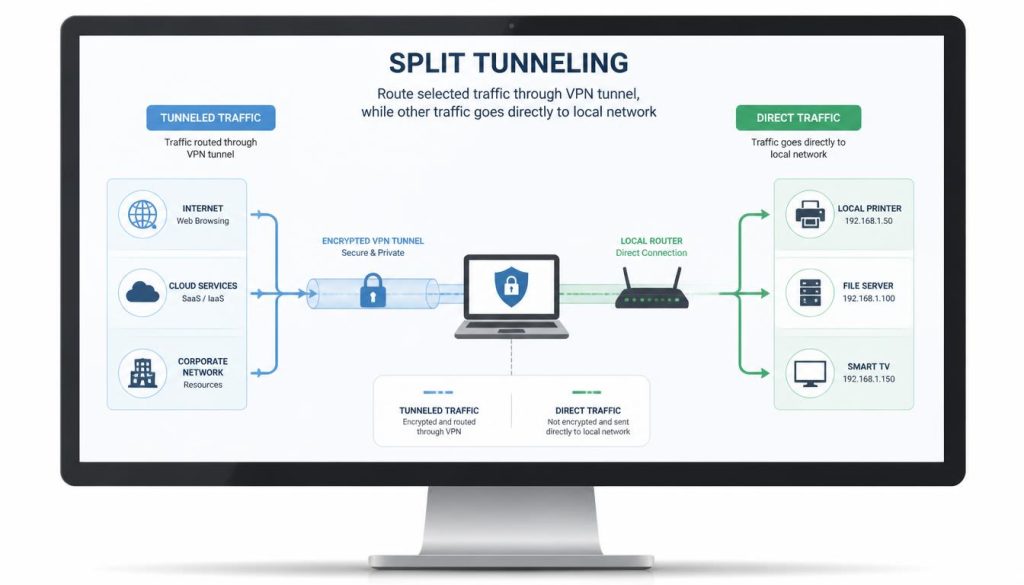
Virtual Private Networks rely on split tunneling (routing specific application traffic outside the encrypted VPN pipeline while securing the rest) to preserve local bandwidth and access network devices simultaneously. However, software updates, virtual adapter conflicts, and DNS leaks frequently trigger scenarios where split tunneling fails to route traffic properly. When encountering split tunneling not working on your machine, pinpointing whether the failure originates from operating system permissions, filter drivers, or domain name resolution prevents unnecessary software reinstallations. This troubleshooting guide breaks down systemic fixes for Windows and macOS environments to restore split tunnel functionality reliably.
Try This First If:
- The VPN application connects properly but excluded apps still route through the encrypted tunnel.
- The issue began immediately after a minor operating system patch or VPN client update.
- Local network devices such as printers or NAS units are unreachable while the VPN is active.
Skip to a Reinstall If:
- Virtual network adapters fail to initialize upon launching the VPN software.
- The split tunneling toggle option is grayed out or throws fatal driver errors.
- Both split-tunneled and full-tunneled modes leak original IP addresses across all browsers.
Standardized Network Adapter Reset Flow
Clearing virtual network binding adapters and resetting system routing tables resolves the vast majority of split tunneling errors on Windows and Mac. This method restores clean IP table assignments without losing saved server profiles or custom app rules.
Common Causes of Split Tunneling Not Working
Understanding why split routing breaks requires looking at how operating system kernels manage outbound packets. Split tunneling relies on low-level network drivers that inspect packet destination IP addresses and dispatch them according to strict IP route configuration rules. When third-party firewalls, platform security permissions, or stale DNS caches interject, the routing table fails to separate private encrypted packets from direct local traffic, directly leading to split tunneling not working after a major system update.
Step-by-Step Fixes for Windows 10 and 11
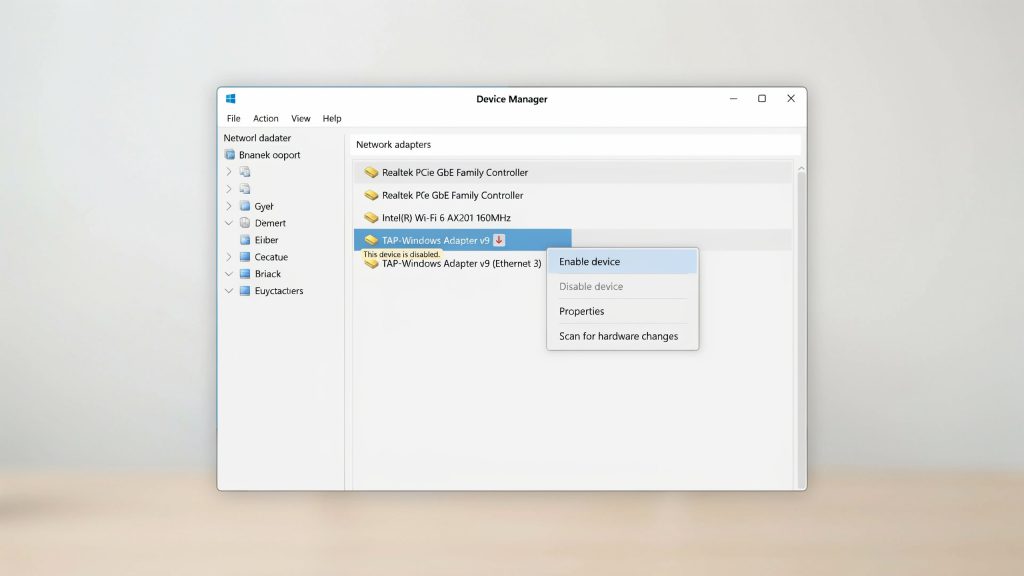
On Windows systems, split tunneling relies heavily on TAP/TUN virtual network adapters and the Windows Filtering Platform (WFP). When driver corruption occurs, the system routes all traffic through the default gateway regardless of client settings.
- Reset Virtual Network Adapters: Open Device Manager, locate Network Adapters, right-click your VPN TAP/TUN driver, and select Disable Device. Wait ten seconds and re-enable it.
- Flush DNS and Reset Winsock Cache: Open Command Prompt as Administrator and execute netsh winsock reset followed by ipconfig /flushdns. Reboot the computer to clear stuck routing tables.
- Configure WFP and Firewall Rules: Built-in security suites often flag application-based split routing as unauthorized socket hooks. Run Microsoft Windows network diagnostics to verify if local socket permissions are blocking the VPN client service.
- Disable IPv6 Leak Protection Conflict: If your ISP provides IPv6 addresses but your VPN provider only splits IPv4 traffic, IPv6 requests bypass split filters. Temporarily disabling IPv6 in network adapter properties resolves cases where split tunneling not working prevents local network traffic from bypassing the tunnel.
Step-by-Step Fixes for macOS
Apple operating systems maintain strict sandboxing, requiring VPN services to integrate with the macOS system extensions framework rather than legacy kernel extensions. This architecture makes macOS split tunneling particularly sensitive to system permissions.
- Verify System Extension Approvals: Navigate to System Settings > Privacy & Security. Ensure the VPN network extension has explicit permission to run in the background. Missing authorization is often responsible for split tunneling not working on macOS Sonoma.
- Clear DNS Cache via Terminal: Execute sudo dscacheutil -flushcache; sudo killall -HUP mDNSResponder in Terminal to purge cached resolution routes.
- Re-add App Paths for App-Based Rules: macOS updates frequently change internal app bundle identifiers. Remove the affected application from your VPN split tunneling list, restart the VPN application, and select the executable again directly from the Applications directory.
- Adjust Service Order Priority: Open System Settings > Network, click the three-dot menu, select Set Service Order, and ensure your primary physical interface sits above the VPN virtual interface.
Network Protocol and DNS Leak Adjustments
The underlying VPN protocol significantly influences split routing stability. WireGuard utilizes fast UDP kernel routing, whereas OpenVPN relies on user-space network adapters that can experience buffer drops under heavy multithreaded loads.
If application-level routing fails, switching protocols inside the client settings often forces the driver to rebuild network bindings. Furthermore, ensuring that DNS queries for excluded applications route to your local router rather than the VPN DNS server eliminates domain routing conflicts to ensure split tunneling not working does not reoccur during background protocol handshakes.
| VPN Protocol | Split Tunnel Type | System Compatibility | Resource Impact | Troubleshooting Priority |
|---|---|---|---|---|
| WireGuard | IP & App-Based | Windows, macOS, Linux | Very Low | High (Fastest routing table re-bind) |
| OpenVPN (UDP) | IP-Based | Windows, macOS, Mobile | Moderate | Medium (Requires TAP driver refresh) |
| IKEv2 / IPsec | IP-Based Only | macOS Native, Windows | Low | Low (Limited app-level split support) |
| Proprietary (NordLynx / Lightway) | App-Based | Windows, macOS | Low | High (Reinstall proprietary adapter) |
App-Based Split Tunneling Advantages
- Precise control over specific browsers and torrent clients
- Keeps high-bandwidth games on direct unencrypted connections
- Prevents streaming services from triggering proxy blocks
Limitations & Common Failure Points
- Sensitive to background software updates and file path shifts
- Requires administrative kernel hook approvals on macOS
- Can leak IPv6 requests if local router uses dual-stack setup
Key Takeaways
- Virtual driver corruption remains the primary cause of split routing failures on Windows.
- macOS System Extension permissions must be manually re-granted after OS updates.
- Disabling IPv6 on local adapters stops unencrypted traffic leaks when split tunneling fails.
- Switching from OpenVPN to WireGuard often resolves application path tracking glitches.
- Flushing DNS and clearing Winsock tables restores split routing without full reinstalls.
Conclusion & Final Verdict
In practice, troubleshooting split tunneling not working requires systematic adapter resets and firewall adjustments before considering complete application removal.
Utility Score: 8.6 / 10