
VPN Not Connecting: The Complete Troubleshooting Guide

Encountering a VPN not connecting error can instantly halt productivity, disrupt secure communication channels, and expose sensitive data to local network eavesdroppers. Diagnosing a VPN not connecting error requires a systematic analysis of network layers, protocol configurations, and operating system permissions. Rather than guessing at solutions, following a structured diagnostic sequence ensures that the root cause is identified and resolved efficiently.
Try This First If:
- Connection drops occurred immediately after a minor network transition or OS update.
- The client hangs on “Connecting” or “Authenticating” indefinitely without a specific error code.
- Specific websites fail to load while other internet services work under the active tunnel.
Skip to a Reinstall If:
- The virtual network adapter shows a permanent “Driver Error” in the system device manager.
- The software fails to launch or crashes immediately upon execution.
- Multiple conflicting VPN applications are installed at the kernel level.
The Architecture of a VPN Connection Failure
A virtual private network connection is not a single transaction. It is a multi-stage sequence of cryptographic handshakes, network requests, and routing table modifications. If any point in this pipeline breaks, the entire connection collapses. Understanding these stages is essential for effective diagnostics.
First, the client performs host resolution. It queries the local DNS server to translate the VPN gateway domain name into an IPv4 or IPv6 address. If the DNS query fails or is intercepted, the client cannot initiate the socket. Next comes the handshake and security association. The client sends an initiation packet using a designated protocol, negotiating cryptographic keys and verifying the server’s identity. This is where firewall blocks or packet drops typically terminate the connection.
Once the secure channel is established, the authentication phase begins. The server verifies user credentials, public keys, or multi-factor tokens. Failures here generate distinct auth-error codes, such as credentials mismatch or expired certificates. After successful authentication, virtual interface configuration occurs. The operating system instantiates a virtual network interface card, such as a TAP driver (a virtual network kernel interface that facilitates VPN tunnel creation). This adapter is assigned an IP address within the private subnet.
Finally, routing table redirection takes place. The client software modifies the host routing table, assigning the VPN gateway as the default route or establishing specific paths for split tunneling (a VPN feature that routes some device traffic through the encrypted VPN tunnel while allowing other applications to access the internet directly). If routing table injection is blocked by local security software, the tunnel remains active, but internet traffic fails to route.
Analyzing the Core Mechanics of a VPN Not Connecting
When diagnostic logs show a VPN not connecting status, it is critical to analyze the structural mechanics of the failure. Handshake timeouts are the most common symptom. When logs show a sequence of repeated packet transmissions without response, this indicates the remote server is unreachable, silent, or actively blocking the port.
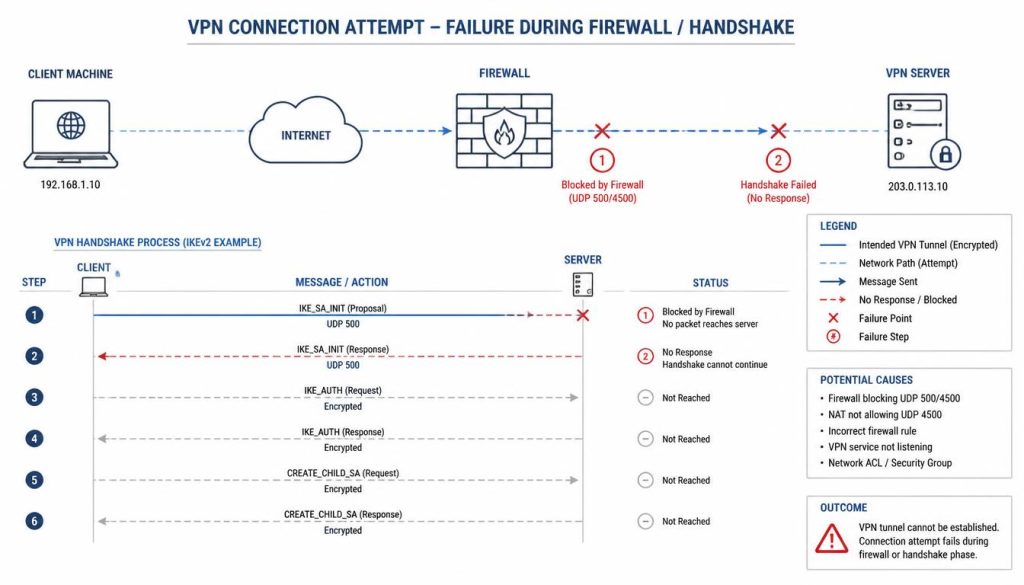
Another critical mechanical failure is route flapping. This occurs when the physical network adapter and the virtual adapter compete for the default gateway metric. The operating system continuously shifts the priority of routes, leading to an unstable connection or a complete drop. This behavior is especially common on networks with aggressive DHCP lease renewals.
ISP blockades represent another mechanical hurdle. Many service providers use Deep Packet Inspection (DPI) to identify unique packet headers of cryptographic protocols. If the DPI engine detects signature OpenVPN or WireGuard payloads, it drops the packets dynamically, resulting in a connection failure even if the server is online. This requires switching to obfuscated protocols or TCP-based configurations.
Phase-by-Phase Diagnostic Framework
To resolve connectivity issues without causing secondary system errors, follow a structured, phase-based diagnostic protocol. This framework isolates the root cause from the physical layer up to the application layer.
Phase 1: Local Network and Gateway Integrity
Before altering system configurations, verify that the local gateway is stable. Double NAT (Network Address Translation – a scenario where two routers on the same network perform address translation simultaneously) can prevent incoming payload association. If a home router is daisy-chained to an ISP modem-router combo, the internal routing tables can drop returning VPN traffic. To bypass this, configure the ISP modem to bridge mode.
Ensure the router has VPN Pass-Through enabled in its firmware. This legacy setting allows specific protocols, like IPsec (Internet Protocol Security, a suite of protocols used to secure IP communications), to bypass basic NAT routers without translation errors. On modern routers, this is typically enabled by default, but firmware updates can occasionally reset these settings.
Phase 2: Software Interferences and Port Allocation
Third-party security suites often intercept network packets at the kernel level. A local software firewall may block the UDP port used by the VPN client. Preventing a VPN not connecting loop caused by software firewalls requires temporarily disabling the packet inspection engine or adding explicit application exceptions to the firewall configuration.
Some antivirus programs include active web protection modules that bind to the same network sockets as the VPN client. This creates socket binding errors, preventing the VPN from establishing a clean socket. Disabling SSL/TLS filtering in the antivirus settings usually resolves this conflict without compromising local file scanning capabilities.
Phase 3: TAP/TUN Virtual Network Driver Resets
In many cases, virtual adapters get stuck in an uninitialized state. According to Microsoft Support documentation, resetting the TCP/IP stack can clear corrupt socket bindings and resolve driver-level conflicts. If the TAP driver is corrupted, the client will fail to allocate the virtual IP, resulting in an immediate disconnect after authentication.
To reset the drivers on Windows, navigate to the Device Manager, locate the network adapters section, and inspect the state of the TAP-Windows Adapter. If a yellow exclamation mark is present, disable and re-enable the device. If the error persists, a complete reinstallation of the TAP driver package is required to restore proper virtual interface instantiation.
Phase 4: DNS and IP Routing Cleanup
Stale routing tables or corrupt local DNS caches will prevent proper packet routing. Flushing the local DNS cache ensures that the client requests a fresh IP address for the VPN server. Run the following commands in an administrative terminal to clear the routing path and reset the network interface configurations:
ipconfig /flushdns
netsh int ip reset
route -f
After executing these commands, restart the host machine. This forces the operating system to rebuild its routing tables from scratch, removing any orphaned routes left behind by previous VPN sessions or crashed client software.
Protocol Optimization and Port Reassignment
Selecting the correct protocol is vital for stability. When diagnostic logs show a VPN not connecting due to protocol mismatch, switching the protocol in the client settings often bypasses local blocks and routing limitations.
WireGuard: Operates over UDP. It features low latency and rapid reconnection times, but it is easily blocked by simple firewall rules that drop non-standard UDP traffic. It lacks native obfuscation, making it highly visible to Deep Packet Inspection engines.
OpenVPN TCP: Runs over port 443, which is the same port used for secure web traffic (HTTPS). This makes OpenVPN TCP highly resilient against firewall detection, as blocking port 443 would disable basic internet browsing for local users. However, it introduces TCP overhead, resulting in slower speeds.
OpenVPN UDP: Offers faster speeds than TCP because it does not require receipt acknowledgment of every packet. However, it is more susceptible to packet loss on unstable Wi-Fi connections. The OpenVPN community wiki details how cryptographic mismatches cause silent handshake failures, which are more common under UDP configurations due to packet fragmentation.
IKEv2: Excellent for mobile devices switching between Wi-Fi and cellular networks. It relies on UDP ports 500 and 4500, which are frequently blocked by public Wi-Fi networks to prevent VPN usage. If IKEv2 fails, switching to OpenVPN or WireGuard is the standard remediation path.
OS-Specific Diagnostic Manual
Different operating systems handle network stacks and virtual interfaces uniquely. Troubleshooting must target these specific platform behaviors to resolve underlying driver or permission conflicts.
Windows Troubleshooting
Windows relies heavily on the WAN Miniport drivers for native VPN protocols. If these become corrupted, native connections fail immediately. Resolving a VPN not connecting issue on Windows often requires reinstalling these miniports.
To do this, open Device Manager, expand Network Adapters, and right-click the WAN Miniport adapters (IKEv2, IPsec, L2TP, PPTP). Select “Uninstall device” for each one. Once uninstalled, click “Action” in the top menu and select “Scan for hardware changes.” Windows will automatically reinstall clean copies of these drivers, restoring native VPN functionality.
macOS Troubleshooting
macOS sandboxes third-party applications, which can block necessary system extensions. Users can review the Apple Support page on VPN profiles to understand how payload restrictions affect mobile configurations and how to re-authorize system extensions in System Settings under Privacy & Security.
To clear DNS and routing tables on macOS, execute the following commands in Terminal. This clears stale network sockets and resets the local multicast DNS daemon:
sudo killall -HUP mDNSResponder
sudo route -n flush
Linux Troubleshooting
Linux systems frequently face DNS routing conflicts when resolving addresses through Systemd-Resolved. If the VPN establishes but web browsing is unavailable, verify `/etc/resolv.conf` is pointing to the active VPN DNS server. Use `resolvectl status` to inspect current DNS paths.
If the client fails to connect entirely, check the systemd journal logs for NetworkManager integration errors. Running the command `journalctl -u NetworkManager -f` while initiating the connection will display real-time kernel-level and routing daemon logs, highlighting missing security certificates or policy kit authentication failures.
Mobile OS Troubleshooting (Android/iOS)
On mobile platforms, aggressive battery-saving features often terminate background VPN tasks. Whitelist the VPN application from battery optimization settings. If the connection fails constantly, navigate to the system VPN settings, delete the existing VPN profile configuration, and allow the client app to reinstall the profile from scratch.
Additionally, disable private DNS or custom DNS configurations on mobile devices. Android’s “Private DNS” feature and iOS’s “Encrypted DNS” profiles can conflict with the DNS redirection rules of the VPN client, causing the connection handshake to stall or drop immediately after establishment.
Advanced Network Tuning and MTU Calculations
If the client remains stuck with the VPN not connecting, or if it connects but cannot load specific web pages, the issue is often related to the MTU (Maximum Transmission Unit – the size of the largest packet that a network protocol can transmit). When packet sizes exceed the physical connection limit, they must be fragmented. Many modern networks block fragmented packets for security reasons, resulting in “black hole” connections where some sites load but others do not.
To calculate the exact MTU for your connection, run a ping test with the “Don’t Fragment” flag in your terminal:
ping -f -l 1472 [server_ip]If the ping returns a “Packet needs to be fragmented but DF set” error, decrease the packet size by 10-byte increments (e.g., 1462, 1452) until you get a successful reply. Add 28 bytes (for IP and ICMP headers) to your successful value to find your optimal MTU. Set this value within your VPN client’s advanced settings.
Additionally, disabling IPv6 manually can resolve lingering connectivity issues. Many VPN servers only support IPv4; if your local ISP routing prioritizes IPv6, the system may bypass the VPN tunnel entirely, leading to leaks or routing failures. Disabling IPv6 in your physical adapter settings forces the operating system to route all traffic through the IPv4-compatible VPN tunnel.
Another common advanced scenario is a locked Kill Switch. If the VPN client crashes unexpectedly, the Kill Switch rules may remain active in the local firewall, preventing all outbound traffic. Resetting the host firewall rules to default will release the internet lock, allowing the client to re-establish its handshake with the remote gateway.
Enterprise-Specific Connection Failures
Enterprise VPN configurations differ significantly from consumer services. The single most common reason for a corporate VPN not connecting is authentication failure related to SAML or MFA timeouts. If the identity provider session expires before the VPN client completes the handshake, the tunnel will fail without a clear error message.
Enterprise firewalls also employ deep packet inspection engines that actively block non-standard SSL certificates. If your work machine cannot establish a tunnel from a hotel network, the hotel’s network hardware is likely dropping the self-signed certificates used by your corporate gateway. In these scenarios, wrapping the traffic in an SSTP (Secure Socket Tunneling Protocol) tunnel over port 443 is the standard remediation path.
Practical Takeaway
- Isolate local network stability before modifying VPN client software or system drivers.
- Switch to OpenVPN TCP over Port 443 to bypass aggressive local firewall blocks and ISP throttling.
- Flush system DNS caches and reset virtual network drivers to clear stale connection routing.
- Calculate and adjust MTU settings manually if the tunnel connects but fails to load web pages.
The following table outlines the comparative performance and stability profiles of the primary VPN protocols under typical network constraints, assisting in selecting the appropriate override protocol.
| Protocol | Standard Port | Firewall Bypass | Stability Profile | Typical Failure Mode |
|---|---|---|---|---|
| WireGuard | 51820 UDP | Low | High on mobile | Silent handshake timeout |
| OpenVPN TCP | 443 TCP | Very High | High on unstable lines | Connection loop / high latency |
| OpenVPN UDP | 1194 UDP | Medium | Medium on packet loss | Packet fragmentation drops |
| IKEv2 | 500 / 4500 UDP | Low | Excellent auto-reconnect | Blocked port timeout |
Conclusion & Verdict
To prevent the VPN not connecting on public networks, maintain multiple active protocols within your client, and always flush your local network sockets after system updates.
Verdict: Proper network diagnostic sequencing and protocol agility are the ultimate solutions to resolving persistent VPN connection failures.
Value-for-Money Score: 9.2 / 10